How the whole system works
A guided tour of every module — from a single master item all the way to a printed truck manifest — with screenshots and real-world examples. Share this page with anyone who needs to get up to speed.
The mental model in one minute
Four object types, and everything else is a view on top of them.
What a thing is. Never moves. Owns versions and photos.
A capability tier of a master item — v1, v2, v2.1.
One physical unit. Has a 6-digit code, a QR tag, a status, a location.
A serialized asset that other assets live inside. Moves as one.
Signing in & operating modes
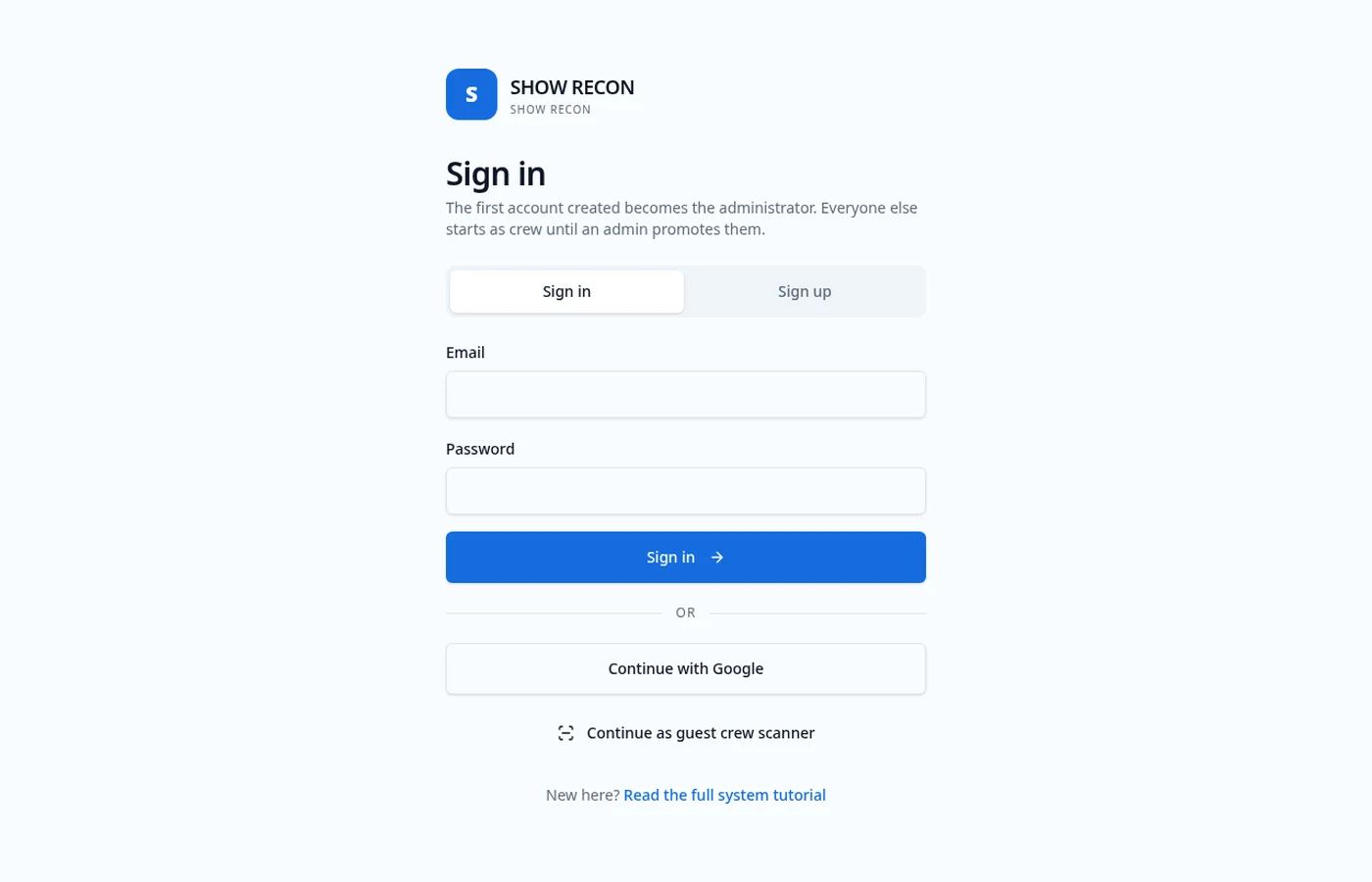
Everyone starts at the same screen and picks the role they're working as. The role decides which modules appear and what actions are allowed.
How to use it
- 1Full user (admin) — every module: catalog, assets, warehouses, trucks, manifests, purchasing, settings.
- 2Team lead (auditor) — audits, inventory moves, fly-ins, manifests and reports. No settings or purchasing.
- 3Crew scanner — scan for info and count case inventory. Nothing else can be reached.
- 4Guest crew scanner — same as crew, but a name is required first and every count is attributed to it.
- 5Switch roles any time from the sidebar card or the avatar menu — 'Switch user' returns you here.
Your two staff leads sign in as Team lead so they can audit cases and assign fly-ins. Five hired hands sign in as Guest crew, type their names, and can only scan. Nobody can accidentally edit the catalog on a chaotic dock.
Item catalog — master items & versions
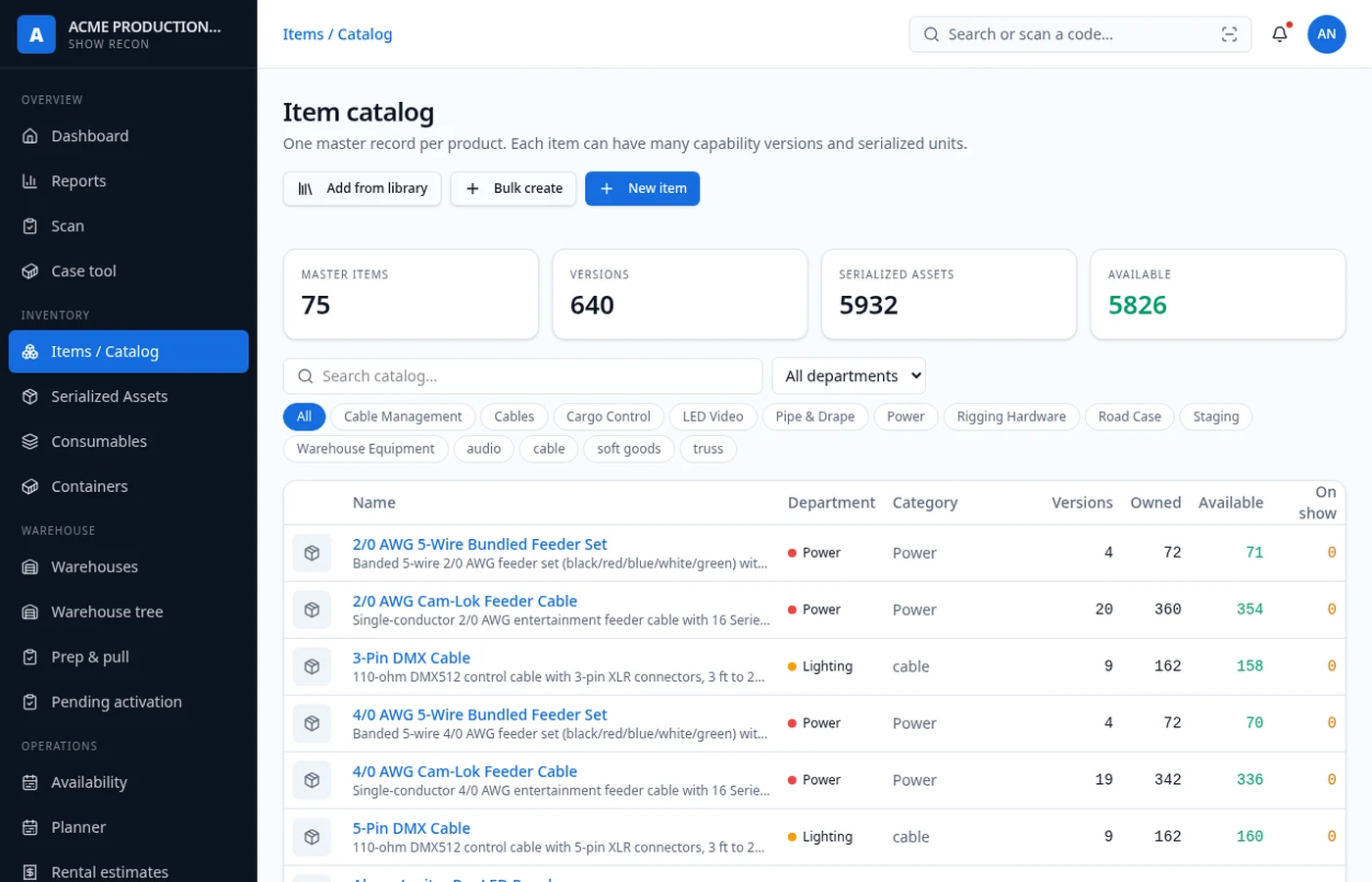
The catalog holds one master record per product. Master items never move; they define what a thing is. Versions describe capability tiers of that item.
How to use it
- 1Create a master item (name, category, department, photos, whether it is a case).
- 2Add versions using the capability axis — Worse / Equivalent / Better — and the system numbers them v1, v2, v2.1 automatically.
- 3Nearly identical items land as a point release (v3.1) instead of forcing a new tier.
- 4Cables: hit the Cable button to generate standard lengths (6', 10', 15', 20', 25', 50', 75', 100', 150', 200') in one pass.
- 5Keep an item as a Draft while you load in every variant, then use Assign versioning to sort and lock the numbering.
You own the original speaker, a louder replacement, and a nearly-identical refurb. One master item, versions v1, v2 and v2.1. Templates and manifests can then ask for 'v2 or better' instead of naming specific serial numbers.
Serialized assets
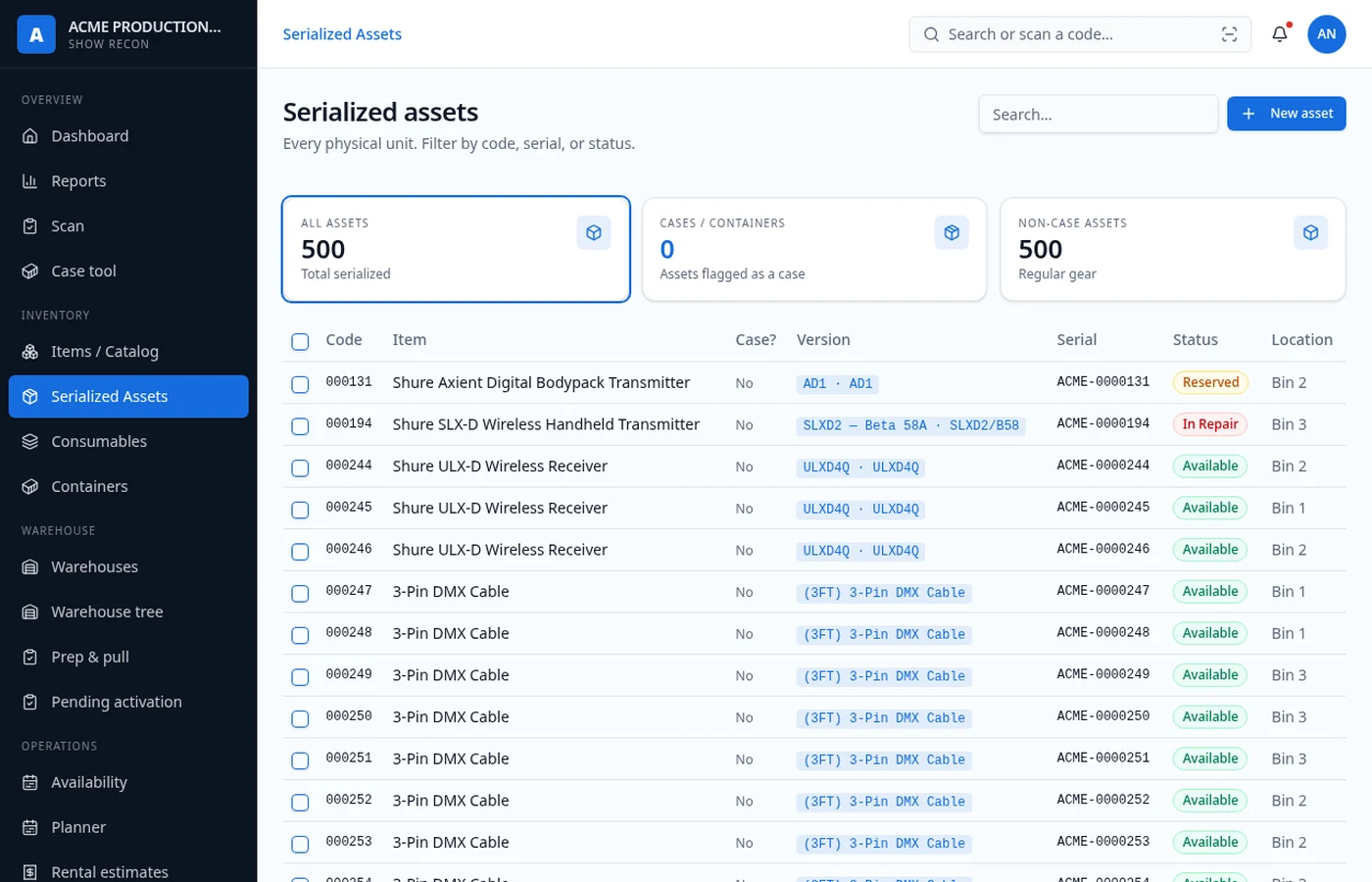
Every physical unit you can point at is a serialized asset with a 6-digit code (000000–999999) and a QR tag. It always has a version, a status and a location.
How to use it
- 1New asset — pick the master item, then the version; case classification is inherited from the master item.
- 2Bulk create — spin up 24 units of a version at once and print their labels in the same session.
- 3Filter by status, department, location, or case/non-case using the tiles at the top.
- 4Tick the checkboxes on any list and use Move to… for a bulk relocation — into a case, a shelf, or straight onto a truck.
- 5Anything moved into a case travels with the case automatically.
Scan the broken mic's tag, set its status to In repair, and it drops out of Available everywhere — the show it was assigned to now shows a gap on the reports dashboard instead of silently shipping short.
Consumables
Gaff tape, batteries, zip ties — things counted by quantity rather than serial number.
How to use it
- 1Track a stock level per location instead of per unit.
- 2Assign quantities to a truck, a case, or a show like any other inventory.
- 3Consumables appear on manifests with their quantities so the truck pack is complete.
Six rolls of gaff go on truck 2 and four stay in the warehouse. The manifest prints both lines, and the warehouse count is right when the truck comes home.
Containers & cases
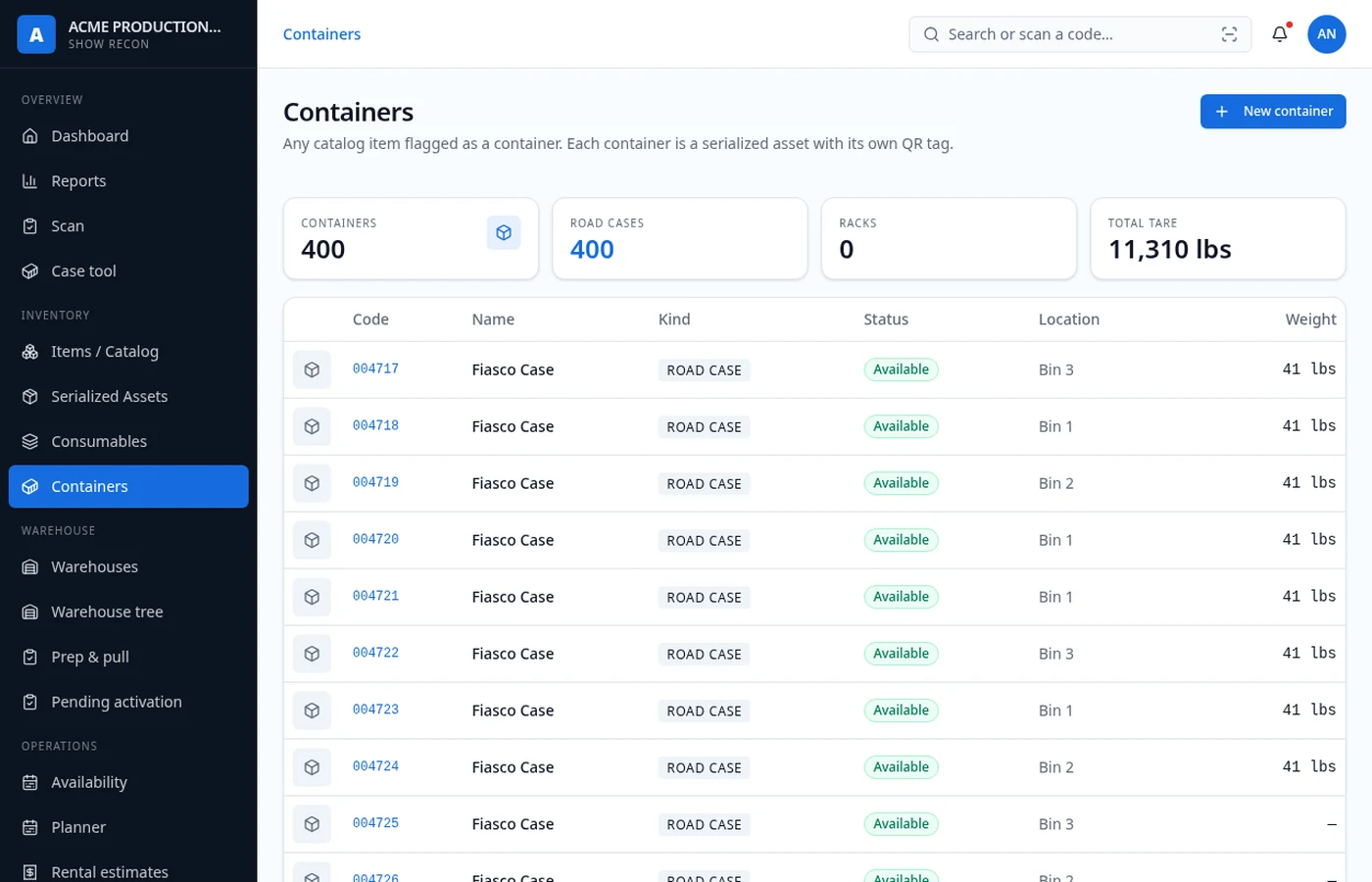
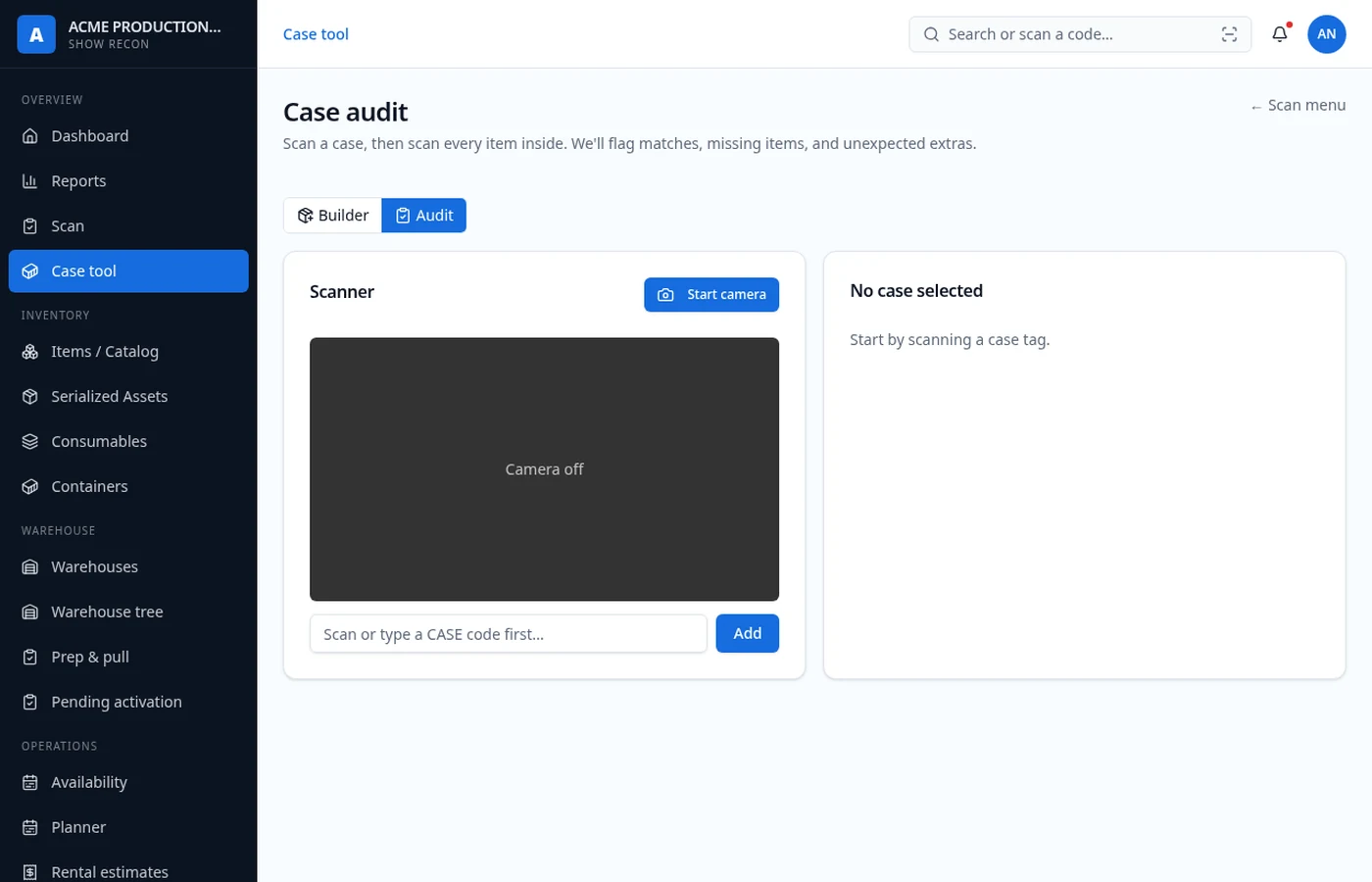
A case is just a serialized asset with a container flag — so it has a master item, a version, a tag and a location like anything else, but other assets can live inside it.
How to use it
- 1Open a case to see and edit its contents card.
- 2Case tool → Builder: scan the case, then scan each item to pack it. No audit, just filling.
- 3Case tool → Audit: scan the case, then scan what's inside. You get expected vs present vs missing vs extra.
- 4Move the case anywhere and everything inside moves with it.
A guest crew member scans case 004821, then every item they pull out of it. Two XLR cables never get scanned, so the case closes as short-by-2 and it lands on the reports dashboard before the truck leaves.
Warehouses & the location tree
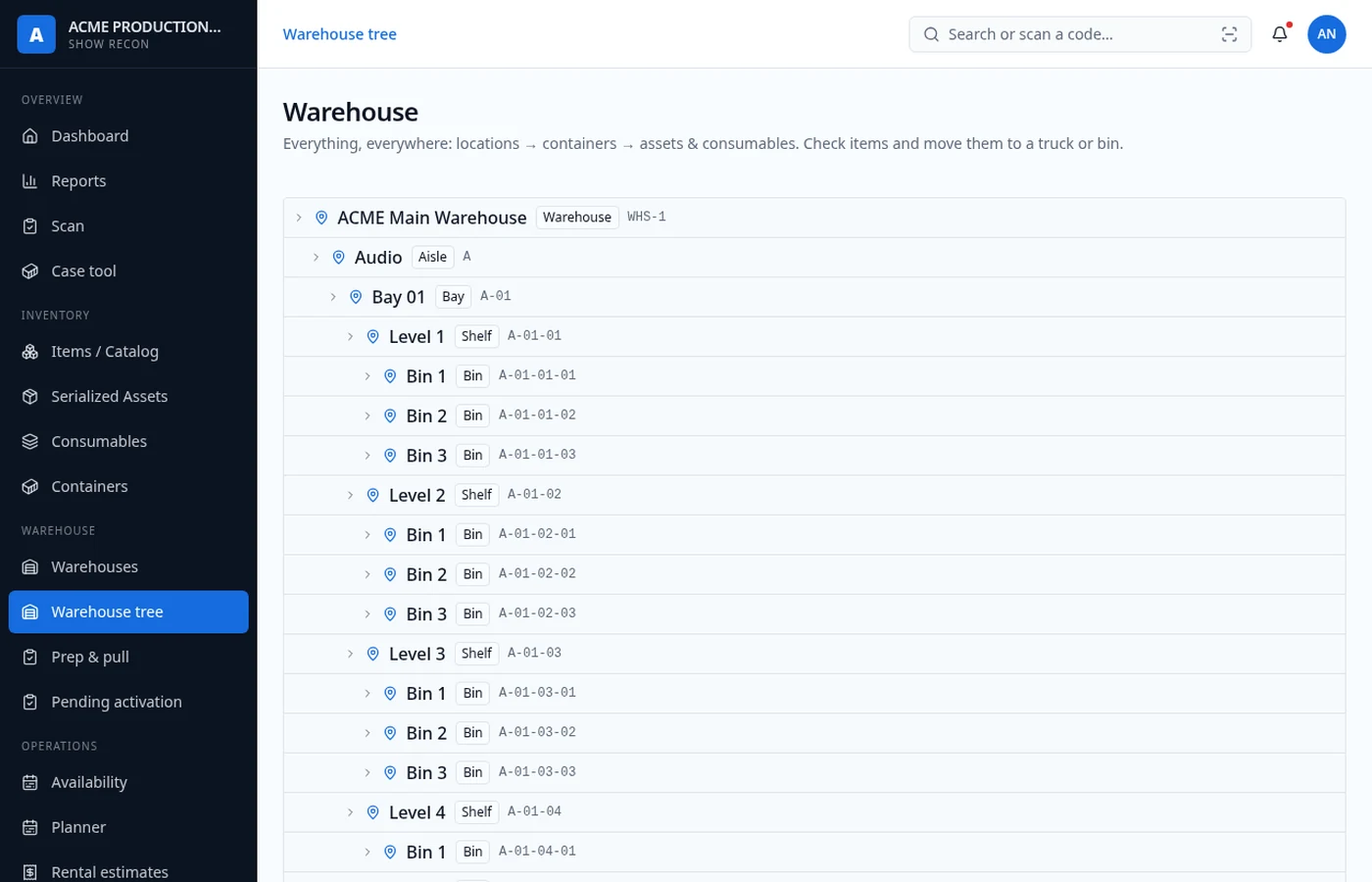
Locations nest as deep as you need: warehouse → room → row → rack → shelf. Every asset, case and consumable sits at exactly one node.
How to use it
- 1Build the tree once under Warehouses, then browse it under Warehouse tree.
- 2Click any node to see everything stored beneath it, including inside cases.
- 3Select items from a node and bulk move them to another node or onto a truck.
- 4Pending activation catches newly created assets that haven't been given a home yet.
Search the asset code, and the tree tells you it's in Warehouse A → Cage 2 → Rack 4 → Case 004821. No walking the building.
Templates
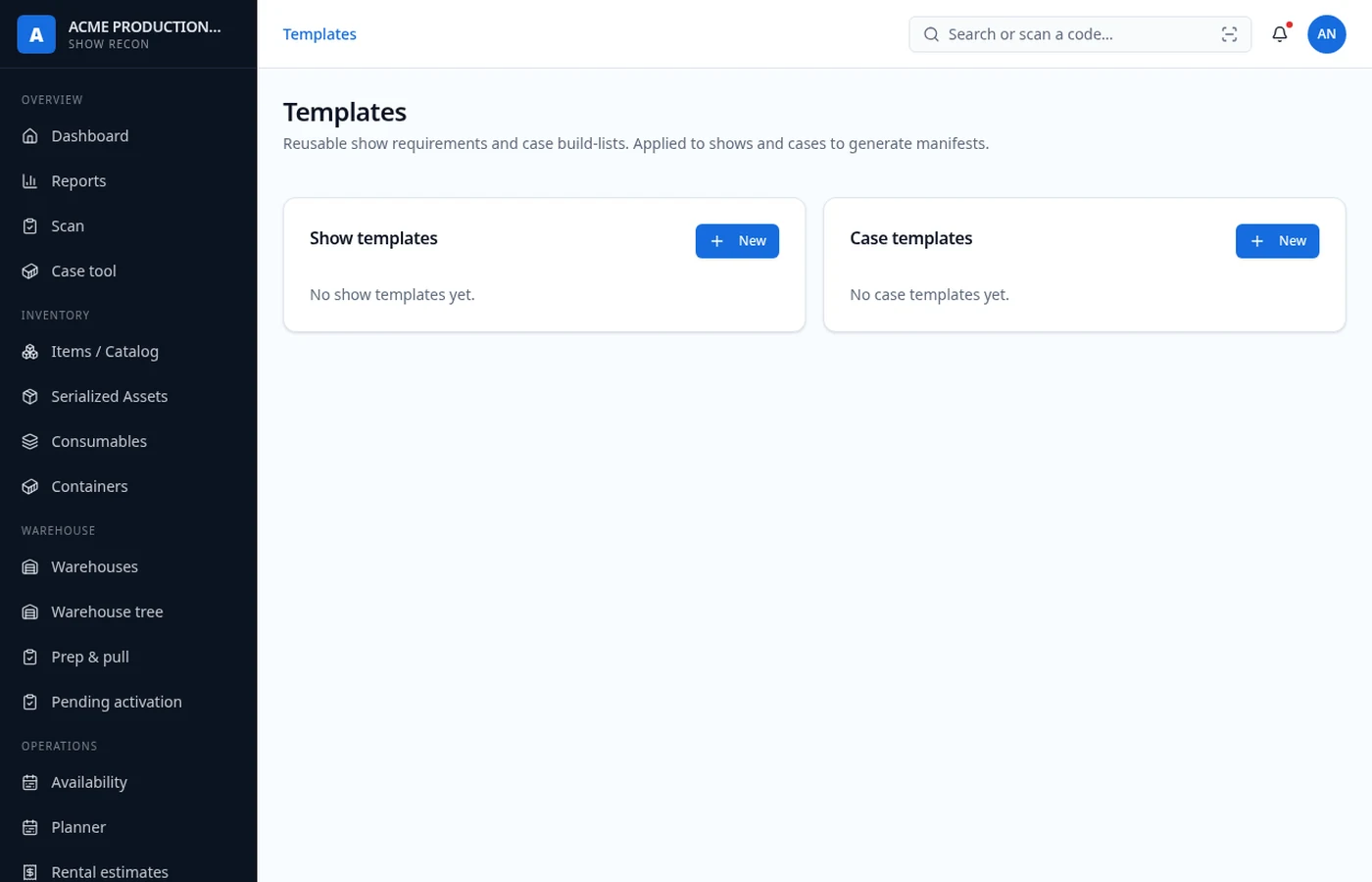
A template is a reusable recipe: a case master item plus the master items and quantities that belong inside it, each with a minimum version.
How to use it
- 1Pick the case master item, then add contents — item, minimum version, quantity.
- 2Version dropdowns show the real version name, not just a number.
- 3Build cases: choose how many copies of the template you need and the system creates and packs them.
- 4Rename or adjust a template any time; existing cases stay as they are.
One 'Audio Case A' template: 1 speaker (v2 or better), 8 XLR 25', 2 IEC 10'. Click build ×5 and you have five packed, tagged, printable cases in under a minute.
Shows, routes & trucks
Shows are stops. Routes group shows into a tour. Trucks carry loads to them.
How to use it
- 1Create shows with dates and venues, then group them into a route.
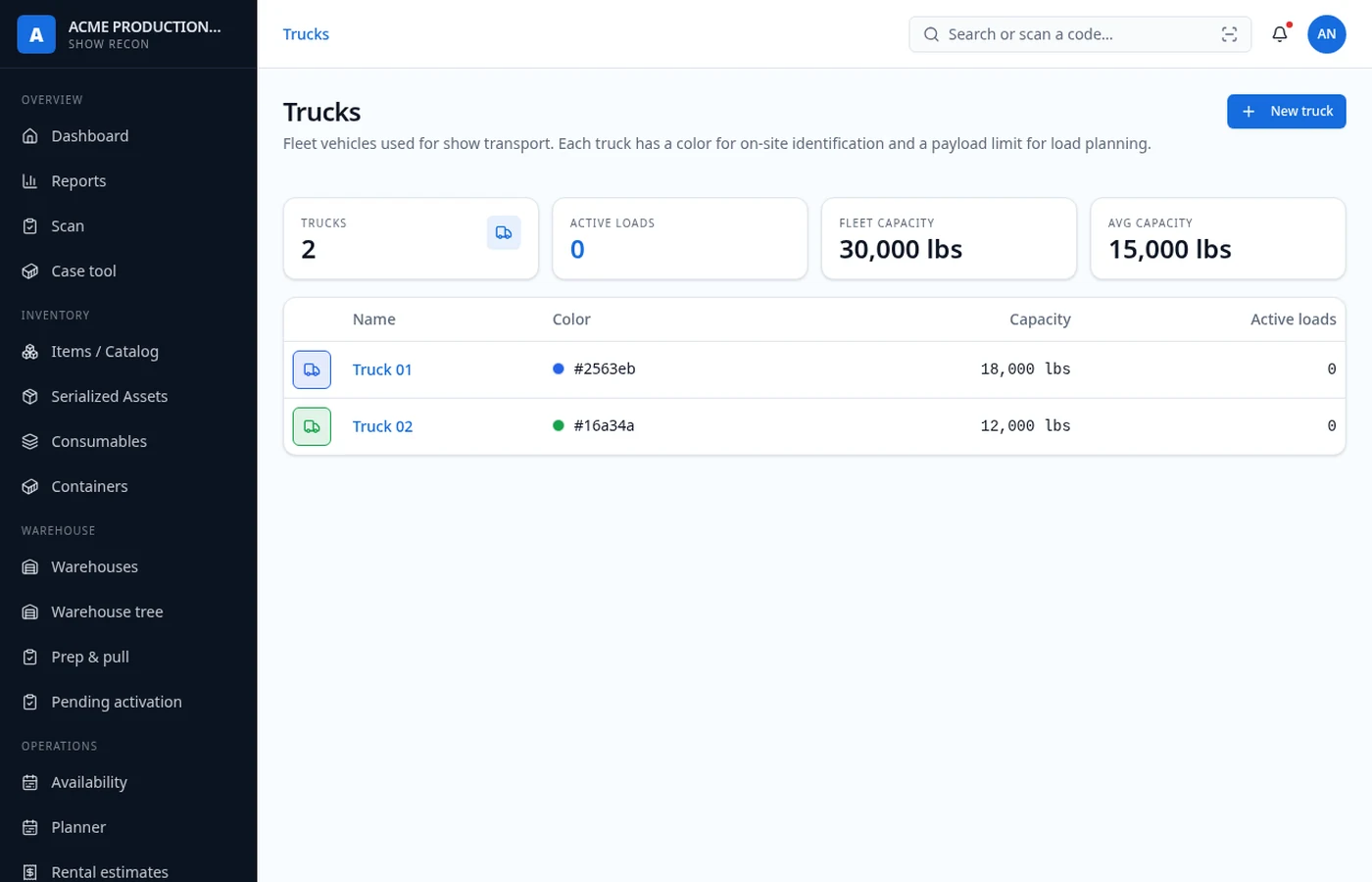
- 2Create a truck and open it to manage its load.
- 3Load it from anywhere: select assets in Serialized assets, in a warehouse node, or a whole case, then Move to → truck.
- 4Packing a case moves its full contents recursively — you never load pieces one at a time.
Route 'Fall Run' holds four shows. Truck 2 is assigned to the route, loaded from Warehouse A, and every scan along the way updates where the gear actually is.
Manifests
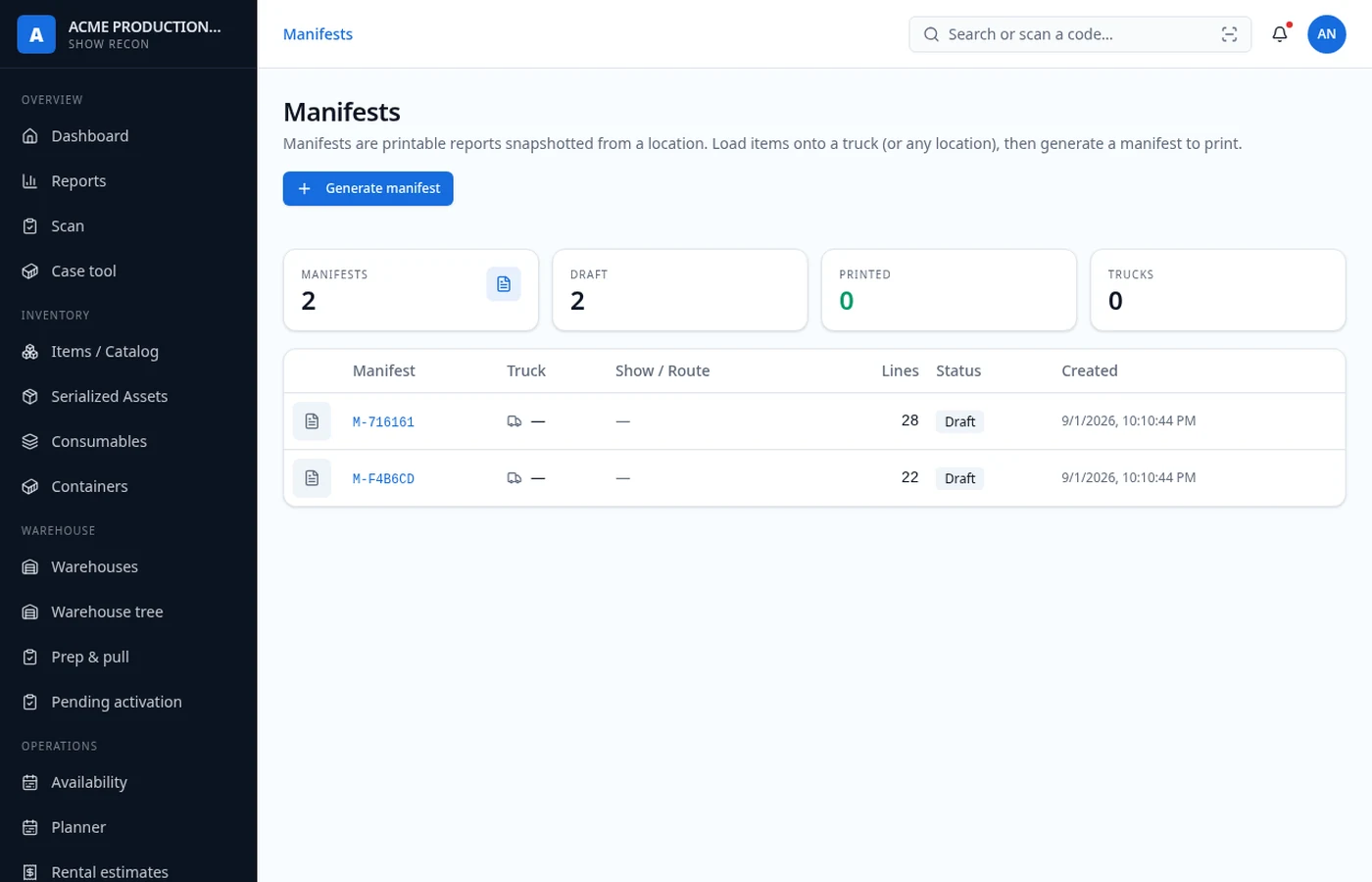
A manifest is a snapshot of what's at a location or on a truck at a moment in time, printable as a PDF with payload and weight summaries.
How to use it
- 1Generate a manifest from any location or truck — it snapshots the contents right then.
- 2Basic truck pack — one line per case, for the loading dock.
- 3Detailed item manifest — every case with its contents indented underneath.
- 4Repeats collapse into quantity lines, grouped strictly by version so v1 and v2 never get piled together.
- 5The PDF carries route stops, warehouse metadata, weights and utilization.
The driver gets the Basic pack — 22 cases, weights, stops. The production manager gets the Detailed manifest so they can prove exactly which speaker version shipped.
Scanning
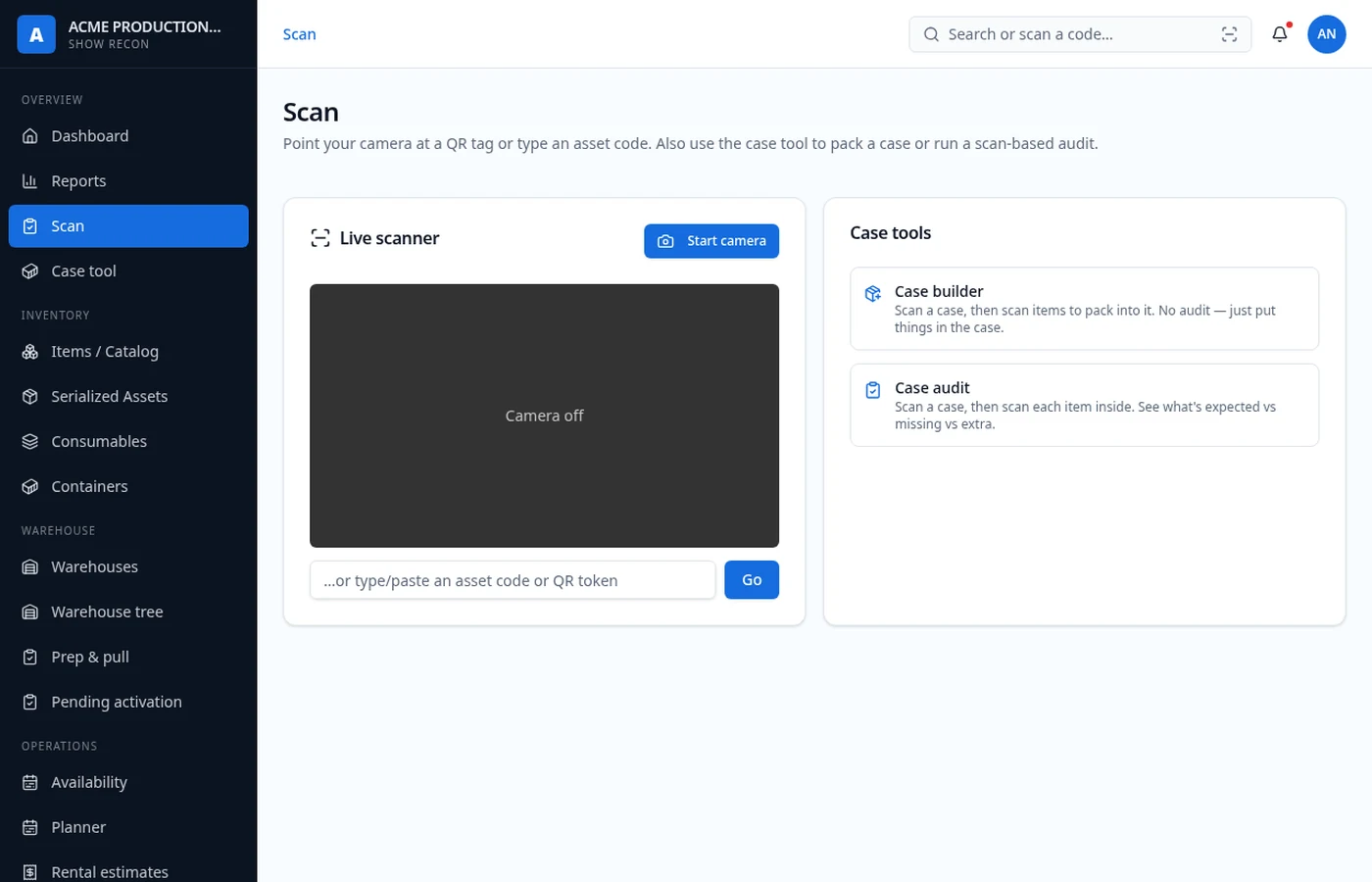
One scanner for everything. Point a phone camera at any QR tag, or type the human-readable code.
How to use it
- 1Scan resolves to whatever the tag belongs to — asset, case, location or truck — and opens its page.
- 2Every scan is written to the event log with who scanned it and when.
- 3Crew and guest roles land here by default; it's the only screen they need.
- 4The header search bar accepts the same codes on desktop.
A crew member finds an unlabeled-looking case in the corner. One scan tells them it's Audio Case A, belongs in Rack 4, and is supposed to be on truck 2 tomorrow.
Labels & printing
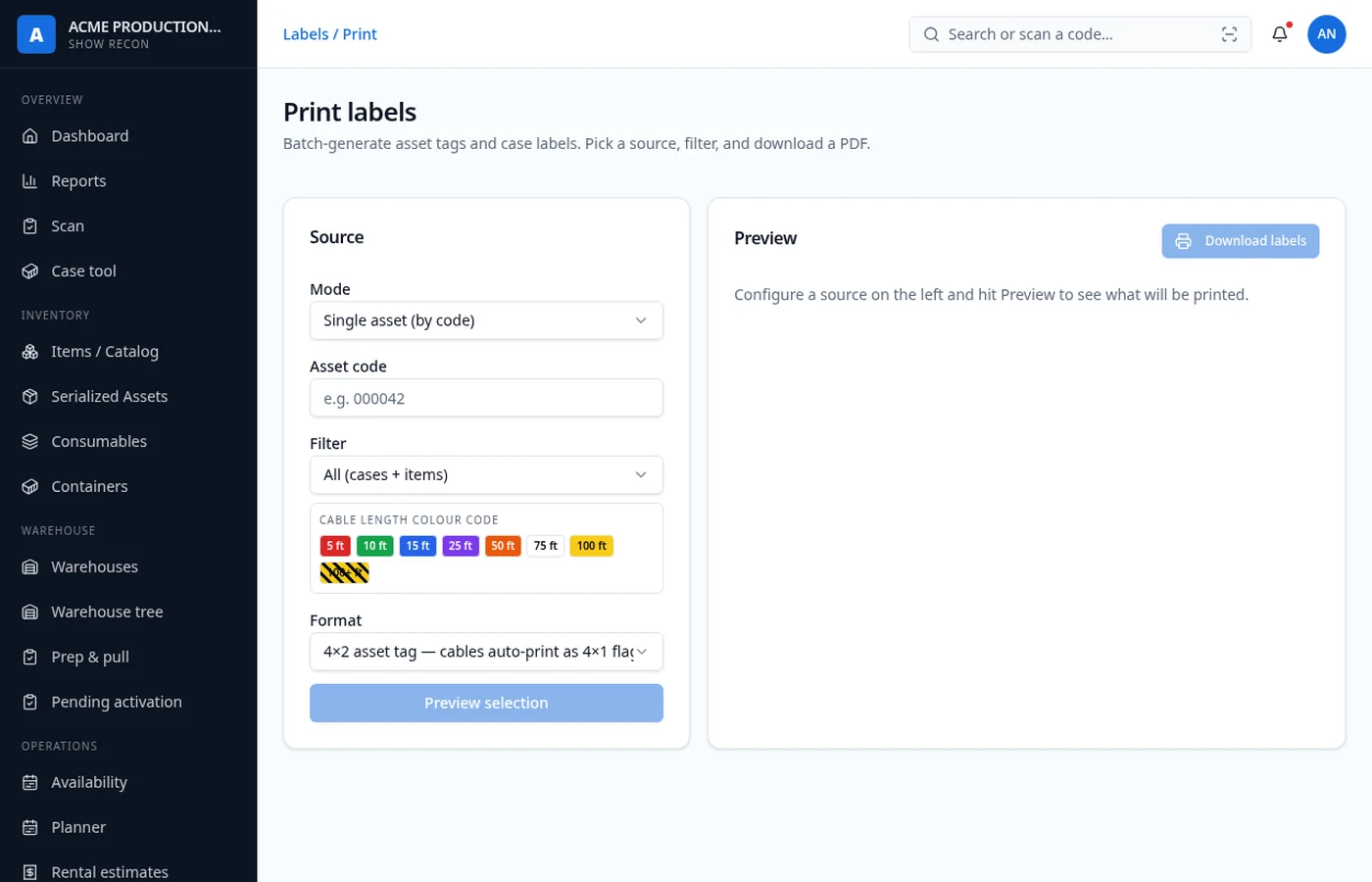
4×2 labels with your logo, a department color band, the human-readable code and the QR tag.
How to use it
- 1Select any set of assets or cases and queue their labels.
- 2The department color band comes from the department assigned in settings.
- 3Your square logo (uploaded in Settings) prints on every tag.
- 4Print sheets straight from the browser — case tags and asset tags use the same layout family.
Select a whole rack in the warehouse tree, send it to labels, print one sheet, walk down the row.
Reports & audits
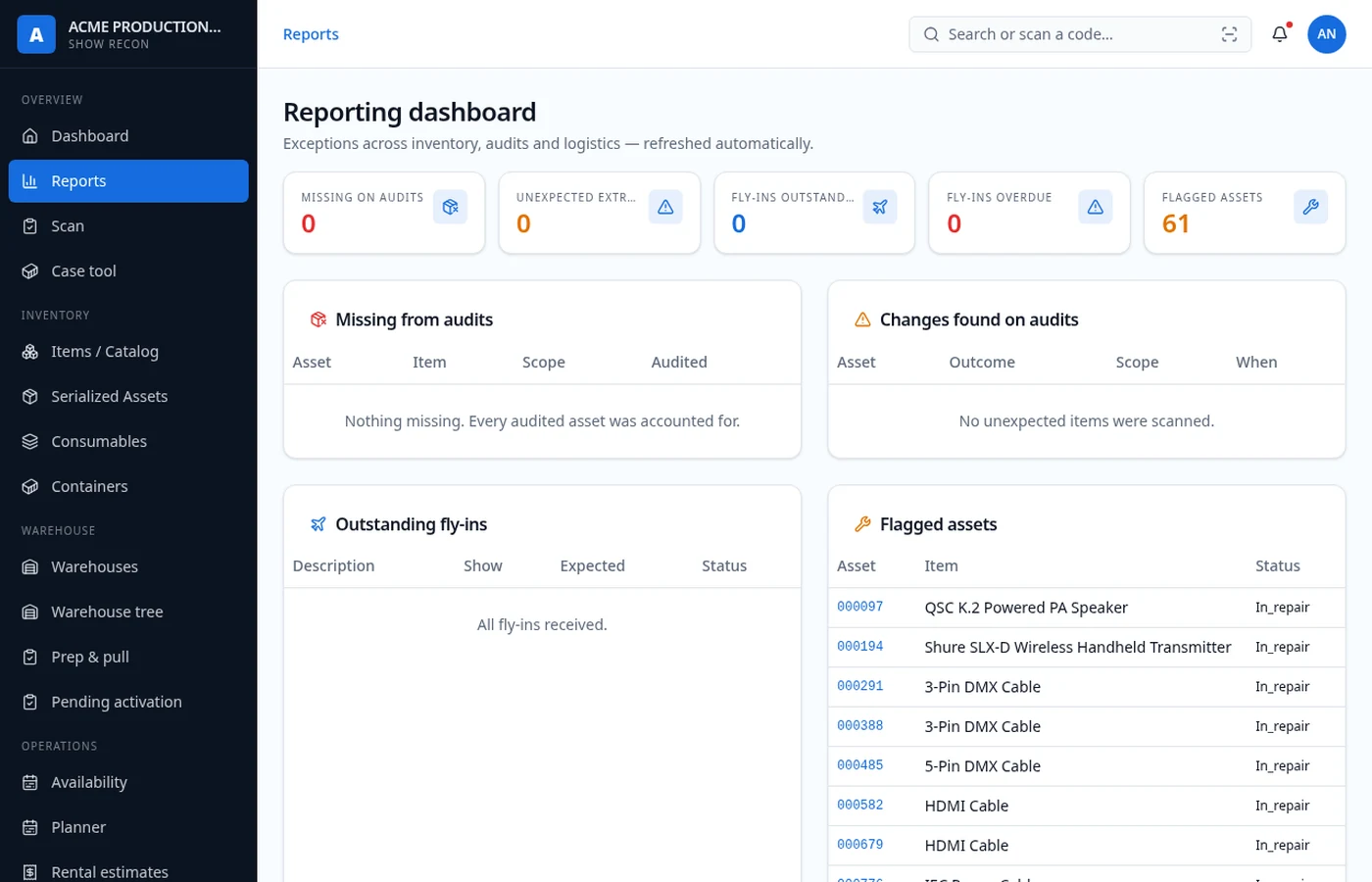
The reporting dashboard is the daily standup screen: what's missing, what changed, what's overdue.
How to use it
- 1Mini-stats for missing items, extra items and overdue fly-ins.
- 2Flagged assets: anything missing, in repair, or retired.
- 3Recent audit outcomes — who audited what, and the discrepancies they found.
- 4A system-wide activity feed built from the event log.
Open reports, see three items marked missing over the weekend and one fly-in that never got returned. Chase those four things instead of re-counting the warehouse.
Fly-ins, rentals, merchandising, maintenance
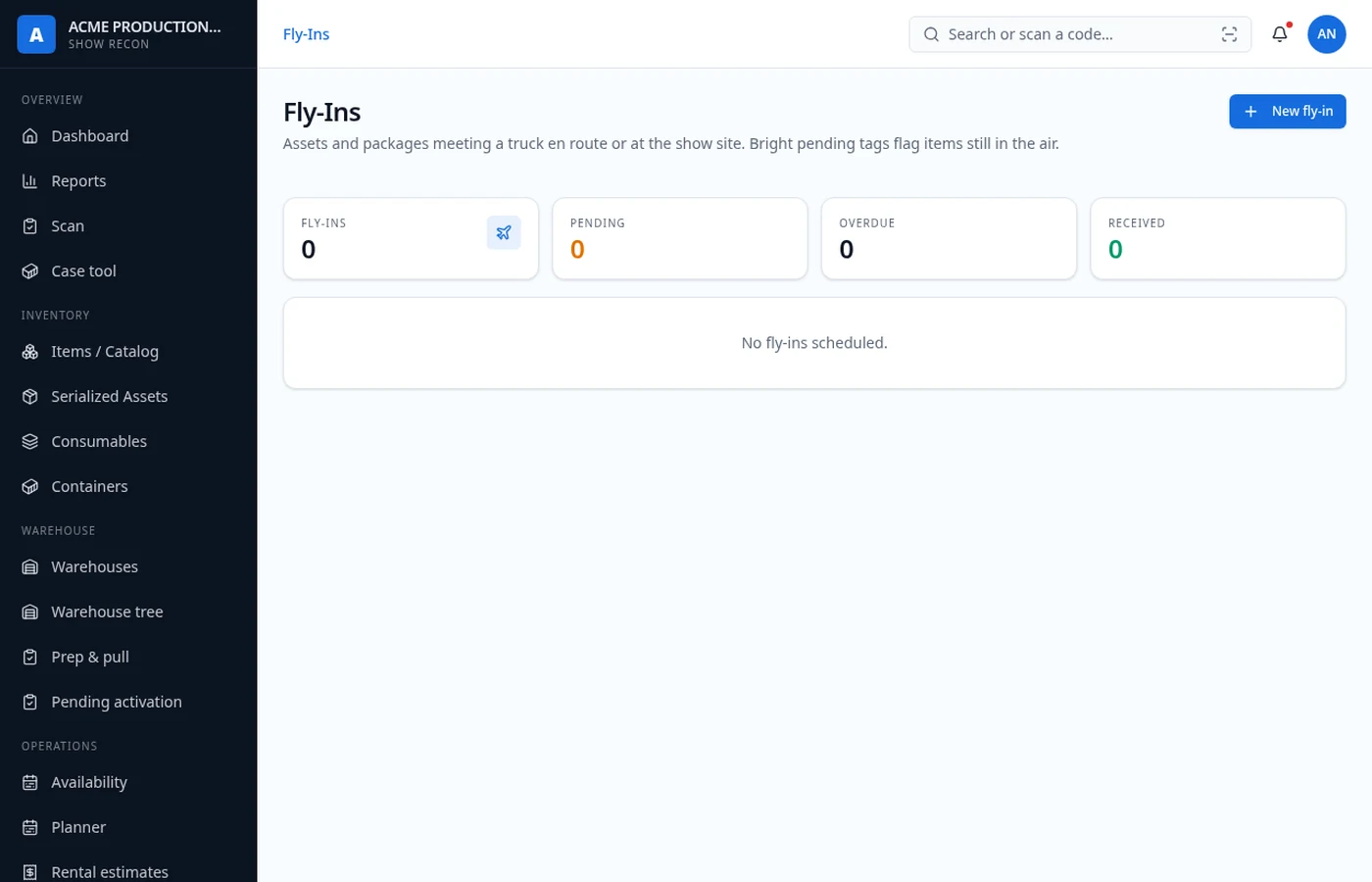
The satellite modules for gear that isn't sitting on a truck.
How to use it
- 1Fly-ins — gear shipped ahead to a show, tracked by serial number with an expected return.
- 2Rentals — gear in or out on rental with dates.
- 3Merchandising — merch inventory handled alongside production gear.
- 4Maintenance & purchasing — repairs in flight and what needs buying.
A camera body flies to a one-off show with its serial recorded. It doesn't come back on schedule, so it shows up under overdue fly-ins on the reports dashboard.
Settings & branding
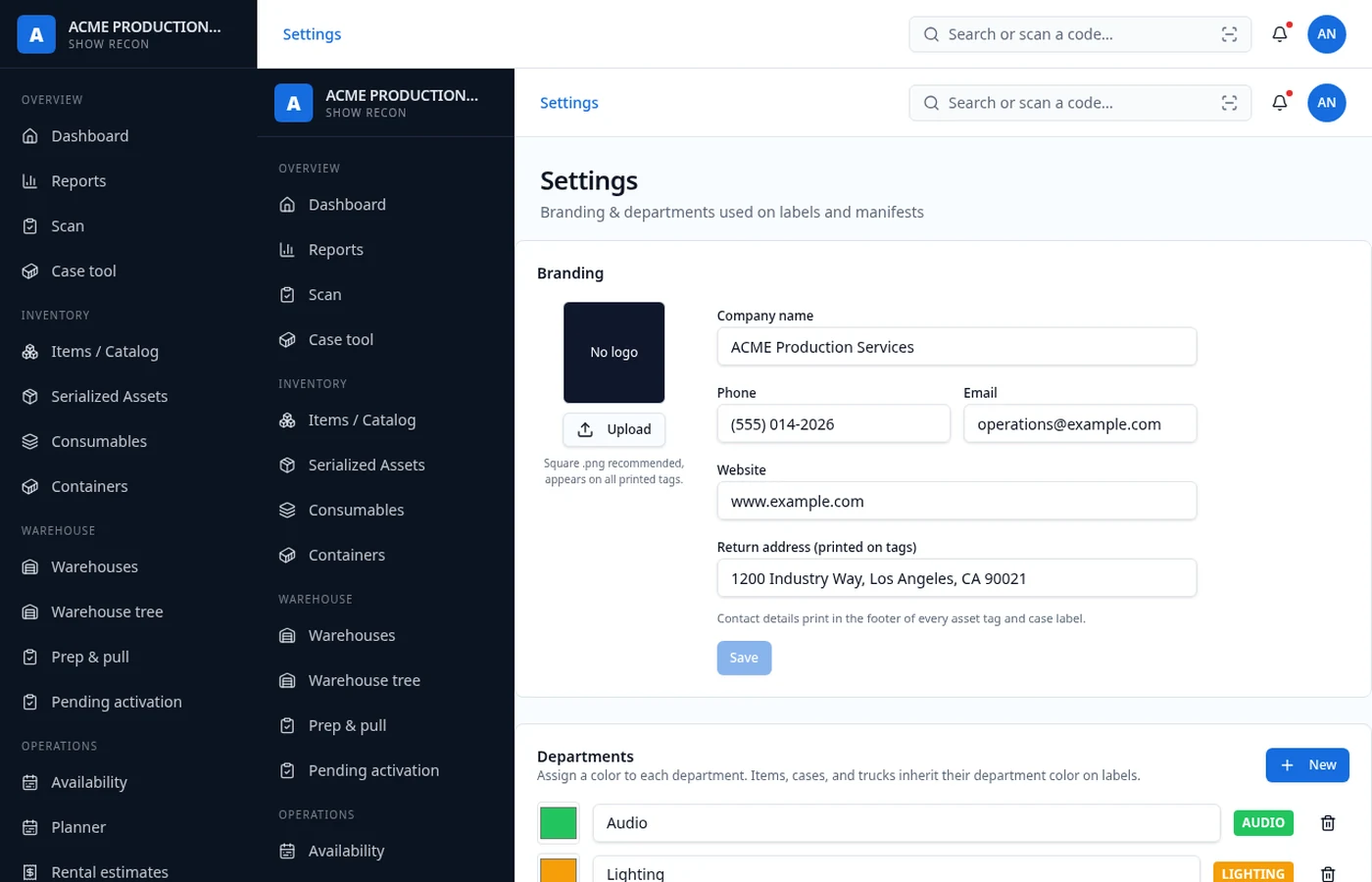
Company identity and departments live here, and they flow into every label and list.
How to use it
- 1Upload a square PNG logo — it appears in the sidebar, the sign-in screen and on printed tags.
- 2Set the company name shown across the console and on manifests.
- 3Create departments and give each one a color; assign departments to items and cases.
Audio is blue, video is orange, lighting is yellow. On the dock, crew sort cases by the color band before they read a single word.
End-to-end walkthrough
One show, start to finish, using every module in order.
- 1Catalog the gear
Create master items for the speaker, the case and the XLR cable. Use the Cable button to generate every standard length at once.
- 2Version it
Add v1 and v2 to the speaker. Leave it as a draft until every variant is in, then assign versioning.
- 3Create the units
Bulk create 24 XLR 25' and 3 speakers. Each gets a 6-digit code and a QR tag.
- 4Build the template
Audio Case A: 1 speaker v2+, 8 XLR 25', 2 IEC 10'. Build ×3.
- 5Store it
Drop the three cases into Warehouse A → Cage 2 → Rack 4.
- 6Plan the run
Create four shows, group them into a route, assign truck 2.
- 7Load the truck
Select the three cases in the warehouse tree → Move to → Truck 2. Contents follow automatically.
- 8Print
Generate the manifest: Basic pack for the driver, Detailed for production. Print case labels if any are missing.
- 9Work the show
Crew scan for info; team leads run case audits at load-out.
- 10Close the loop
Reports shows two missing XLRs and one overdue fly-in. Chase those, not the whole warehouse.
Ready to jump in?
Head to the console, pick your role, and start with the item catalog.
Continue to the home page